Every website eventually needs custom code: small pieces of code, like Facebook tracking pixels, Google Analytics scripts, or minor design tweaks. This usually brings up a common debate: should you use a child theme or a code snippet plugin?
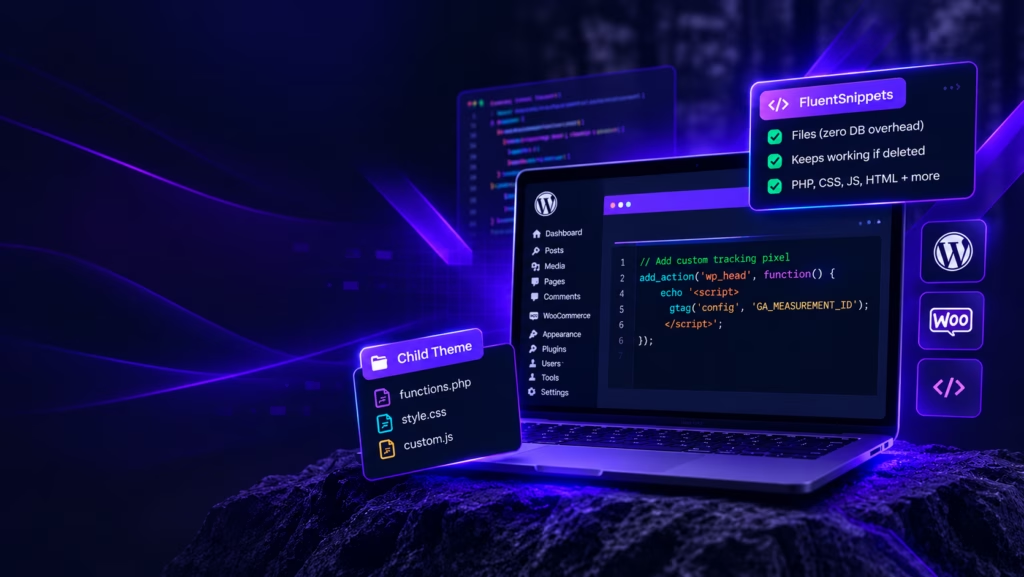
For performance and site health, a child theme (a safe, separate copy of your store’s design where developers make permanent structural changes so they aren’t erased when the main theme updates) is the traditional approach. It adds zero plugin overhead and keeps your site lean.
However, if you need the convenience of a plugin to manage custom store functions (like modifying your checkout fields) without slowing down your store’s load time, FluentSnippets is the clear winner in 2026.
Here is a practical breakdown of how to manage custom code without bloating your store.
Child Themes: The Gold Standard (With a Catch)
Historically, the textbook way to add custom code – like CSS tweaks or new WooCommerce functions – is a child theme.
- The Pros: Zero plugin overhead. Code lives directly on your server in standard files, which keeps your site fast and stable.
- The Cons: Maintenance. Every time your parent theme pushes a major update, you may have to make sure that your child theme doesn’t break.
Use a child theme if you are making heavy structural changes, overriding WooCommerce templates, or building a custom design. For quick behavioral tweaks (like adding a tracking pixel or a custom checkout field), a snippet plugin is much faster – if you choose the right one.
As a developer, I prefer to add custom code with child themes.
The Snippet Plugins Compared
If you decide to use a snippets plugin, pick exactly one. Running multiple code managers on the same site creates confusion and makes troubleshooting impossible.
| Feature | FluentSnippets (Top Pick) | WPCode (Best for Teams) | Code Snippets (The Original) |
| How it stores code | Files (Fast, safe) | Database | Database |
| Database Overhead | Zero | Yes | Yes |
| Free Features | PHP, CSS, JS, HTML | PHP, CSS, JS, HTML | PHP and HTML only |
| If you delete the plugin | Code keeps working | Code disappears | Code disappears |
| Best For | Performance and stability | Giving staff restricted access | Users who need cloud syncing |
| Price | 100% Free | Free; Pro starts at $49/yr | Free; Pro starts at $149/yr |
1. FluentSnippets (The Winner)
FluentSnippets fixes the biggest problem with snippet plugins: database bloat. Instead of saving your code into your WordPress database, it saves it as actual files on your server.
- Zero overhead: It doesn’t run extra database queries to load your code, making it the fastest option.
- Standalone mode: If you turn on “Standalone mode” and delete the FluentSnippets plugin, your custom code keeps working perfectly. You own the code, not the plugin.
- Everything is free: You get PHP, CSS, JavaScript, and HTML, plus advanced conditional logic (like only running a script on a specific WooCommerce product page), all for free.
2. WPCode (Best if Marketers Need Access)
WPCode is the most popular snippet plugin (~3 million sites). Its free version is very generous, but it still stores your code in the database, which adds slight overhead.
- Why use it? If you have a marketing team that frequently needs to add tracking pixels (Meta, Google, TikTok), WPCode‘s $199/year tier allows you to grant “text-only” access to specific users. Yet, they could accidentally break the site with raw PHP or faulty code.
However, if you’re already using Google Tag Manager, that’s an even better way for your marketing team to add custom code.
3. Code Snippets (Showing Its Age)
Code Snippets is the original manager, but its free tier is highly restrictive. To add custom CSS or JavaScript with Code Snippets, you have to pay $149 a year (as of writing this article). It also stores code in the database. Only use this if you are a developer heavily invested in their paid cloud-sync library.
The Verdict for Website Owners
- Optimal solution: If you can, use a child theme. It requires no plugins and adds no bloat to your store’s load times.
- Prioritize comfort: If you need the flexibility of a dashboard to manage your snippets, install FluentSnippets. It has the performance of a child theme by saving your code as flat files, and it won’t hold your site hostage if you ever uninstall it.
- Best for marketing teams: If your marketing team needs to add tracking scripts, Google Tag Manager is the ideal solution – especially if you are already using it.